
Fun88 App Install Guide for Android and iOS, Step by Step (2026)
With just 1–3 minutes and the official download source, you can have the Fun88 app running smoothly on both Android and iPhone.
The entire process of downloading and installing the Fun88 app, from opening your browser to logging in successfully, takes only about 1–3 minutes, depending on your network speed. That sounds simple, but in reality plenty of long-time players still run into permission errors on Android or get stuck at the configuration confirmation step on iPhone, mostly because they skip one small step in the system settings. This guide goes straight to those points, especially the iOS process, which has more steps than Android and is easier to get wrong.
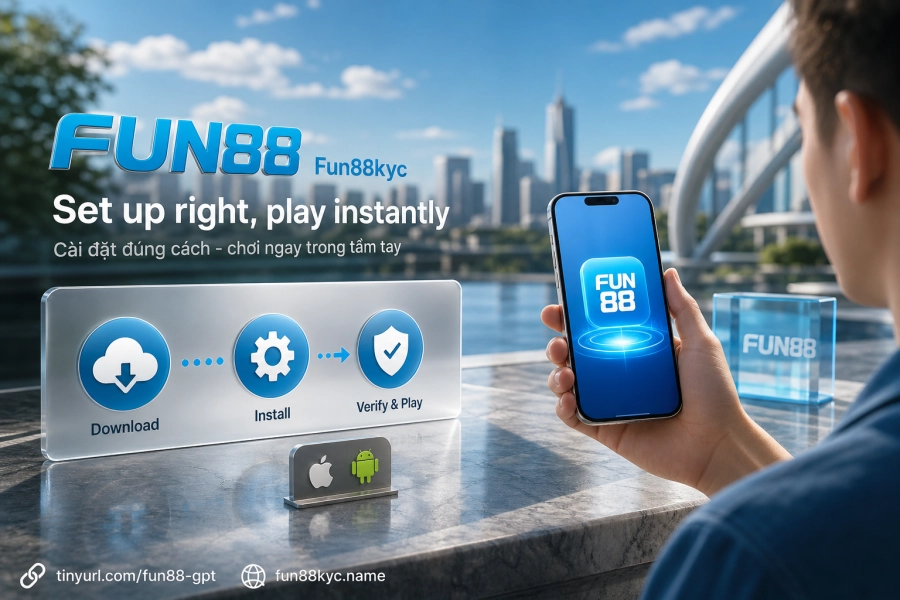
Before downloading: what do your device and connection need?
The minimum requirements for an installation that doesn't fail halfway come down to three factors: operating system version, free storage, and connection quality. On Android, your phone needs to run Android 6.0 or later; on iPhone or iPad, the minimum is iOS 12. The installation file is around 120–180 MB, and after installation it will use an extra 20–50 MB of cache, so it's best to keep at least 150–200 MB free before you start.
As for connectivity, go for 4G/5G or a private network rather than public Wi-Fi. The reason: some public networks block domains or throttle bandwidth, which can leave the APK download incomplete or stop the App Store from loading. Check your remaining storage quickly under Settings → Storage beforehand so you don't have to cancel midway.
Where should you download the app to avoid fake apps?
This is the point many experienced users still overlook. The safest method is to go directly to Fun88kyc from your browser, then look for the "Download Now" banner at the top of the page when using your phone, or scan the official QR code if you're on a computer. A QR code is harder to fake than a manually typed link, especially when links are misspelled or shared around on social media.
Never download APK files from third-party sites or shortened links of unknown origin. Fake apps often look exactly like the real thing but can harvest login credentials the first time you open them. The same risk applies on iOS: only install from the official App Store after being directed there from the operator's homepage, and never install profiles from unknown sources.
Installing on Android: 4 steps and where people get stuck
The Android process has four main steps, but the second one, granting permission to install from unknown sources, is where most errors happen. Here is the full sequence:
- Go to the Fun88 homepage on your phone and tap the "Download Now" banner to start downloading the APK file.
- When the browser asks whether you want to download the file from this source, choose "Download anyway". If your device shows an error blocking installation, go to Settings → Security → Turn on "Allow installs from unknown sources".
- Open the APK file you just downloaded (usually in the Downloads folder) and confirm the installation.
- Once installed, open the app and log in to check that it works.
The whole process from tapping download to finishing installation usually takes 1–2 minutes on a stable connection. Note: on some newer Android devices (Android 8.0 and later), the "install from unknown sources" permission is granted per app (rather than switched on system-wide as in older versions). You'll see a permission prompt right when you open the APK file, so you don't have to dig through Settings manually.
Installing on iOS: a detailed walkthrough to avoid errors at the configuration confirmation step
iOS has more steps (6–7) and requires you to actively confirm at two different points in the system settings. This is why this process needs a more detailed walkthrough.
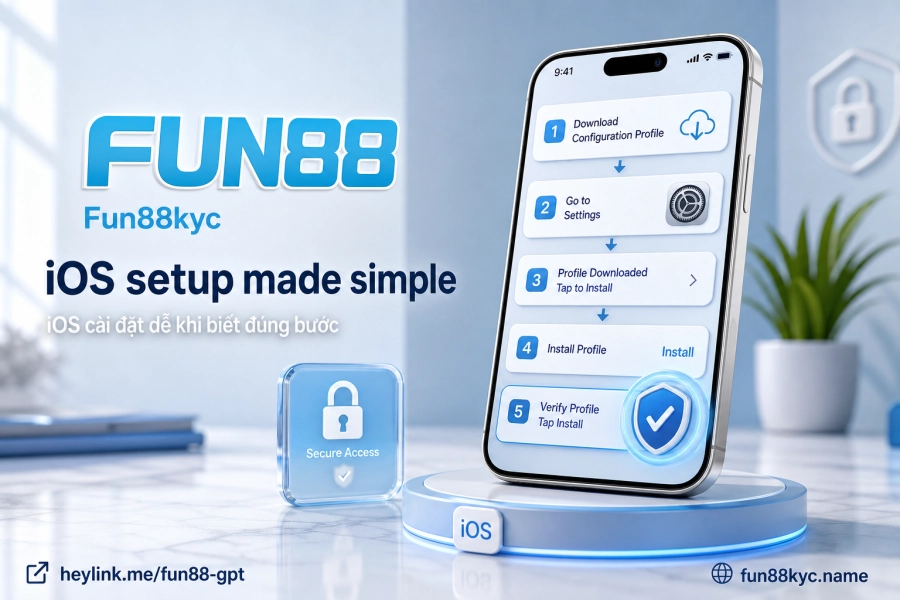
Download and installation steps on iPhone/iPad
The correct order is as follows:
- Go to the Fun88 homepage in Safari or your default browser and look for the "App Download" section.
- Select the iOS version (don't accidentally pick Android).
- Tap "Download Now". The system will redirect you to the App Store.
- In the App Store, tap "Get". Note: the app may appear under the name EasyOrderFresh instead of Fun88. This is the technical name registered on the App Store, not a fake app.
- Confirm with Face ID, Touch ID, or your Apple ID/iCloud password when prompted.
- After installation, go to Settings → General → VPN & Device Management (or Profiles & Device Management, depending on your iOS version), find the Fun88 profile and tap "Trust".
- Return to the app, open it, and log in as usual.
Why is step 6 important and so often skipped?
This is the difference between people who install successfully and those who install but can't open the app. iOS requires users to actively grant trust to apps installed from outside the App Store via an enterprise profile. If you skip this step, the app will still appear on your screen, but when you open it you'll get a "Untrusted Developer" error and it won't launch. You don't need to uninstall anything. Just go to the right section in Settings, tap Trust, and the app will work immediately.
One more detail: on newer iPhones (with Face ID), the iCloud password confirmation usually only appears once during the first installation session. If this confirmation prompt doesn't show up, try restarting the App Store or signing out and back in with your Apple ID.

Quick comparison: Android vs iOS installation process
| Criteria | Android | iOS |
|---|---|---|
| Number of installation steps | 4 steps | 6–7 steps |
| Download source | APK file from the homepage | App Store (via the homepage) |
| Step where people get stuck | Granting "unknown sources" permission | Configuration confirmation / Trust profile |
| App name in store | Fun88 (real name) | May show as "EasyOrderFresh" |
| Minimum OS version | Android 6.0 | iOS 12 |
| Time to complete | ~1–2 minutes | ~2–3 minutes |
After installation: checking and linking your account
Finishing the installation doesn't mean you're done. The check right after installing is more important than most users think: open the app, try logging in with your existing account, and check that the interface loads the correct data (balance, betting history). If you see a blank screen or a loading spinner that never finishes, try switching from Wi-Fi to 4G. Some carriers' DNS filtering can slow down connections to the operator's servers over home networks.
Users without an account can register directly in the app. See the full process on the Fun88 account registration page. Once logged in, you can access Online casino, Sports betting, or Lottery without opening a browser. Deposits and Withdrawals also work fully within the app through familiar local payment channels.
A final practical note: the Fun88 app is updated regularly, and each new version sometimes requires you to grant permissions again (especially on iOS after Apple updates its policies). If the app suddenly won't open when it worked fine before, check the Device Management section in Settings before uninstalling. Re-trusting the profile usually fixes the problem without starting over. On Android, if a new APK requires removing the old version first, be sure to back up your account notes beforehand so you don't lose your login details.